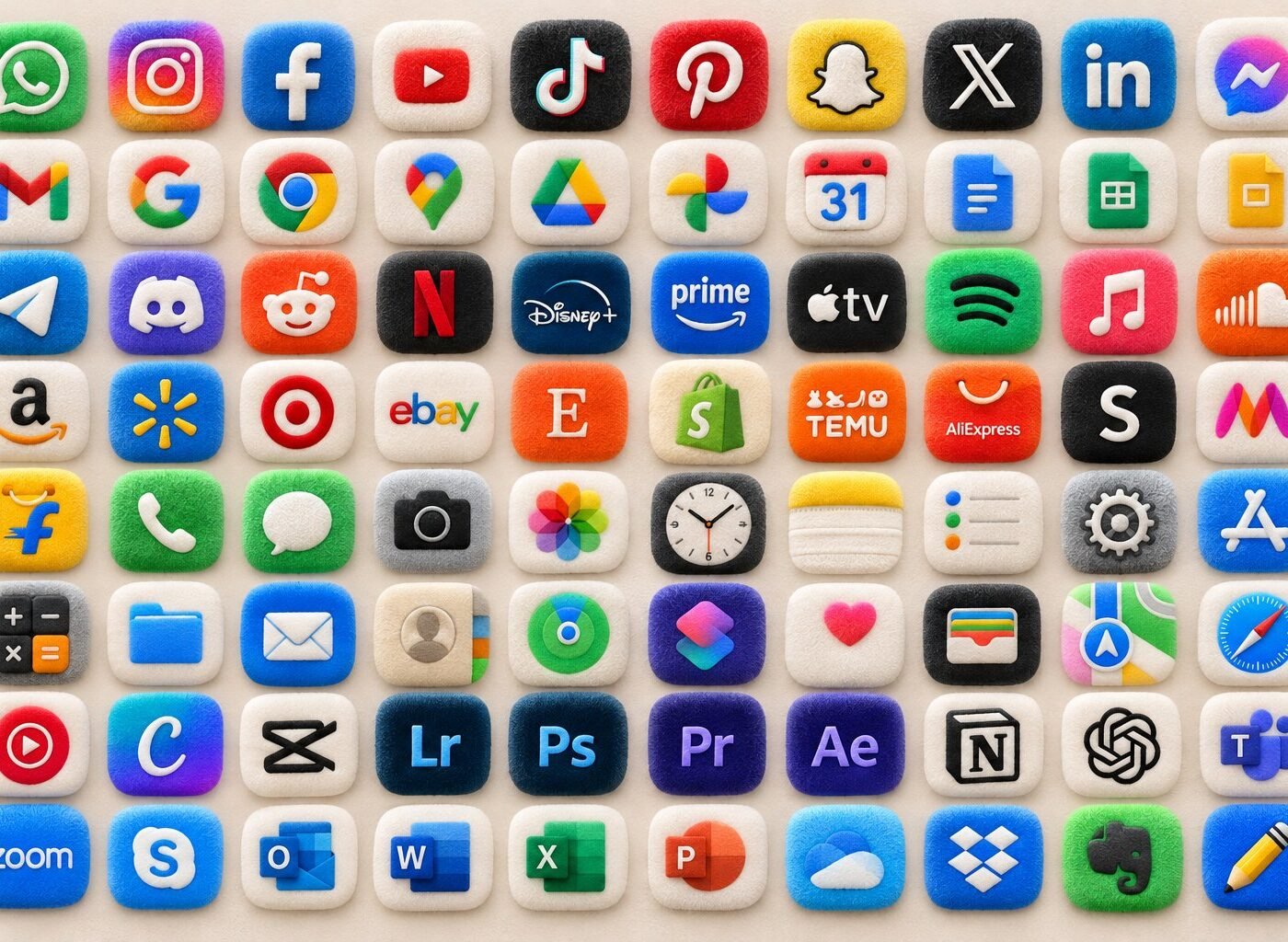
Ready for a softer home screen? This complete fluffy collection includes 107 free app icon images and eight matching pastel wallpapers, all in one download. Choose a few favorites or coordinate several Home Screen pages—the full pack is free.
Complete free collection
Download all 107 fluffy app icons and eight wallpapers
The ZIP contains 107 individual square JPG icon images plus eight vertical PNG wallpapers. Everything shown in this article is included in the same free download, and the complete guide stays here in the blog instead of inside a separate PDF.
A few popular apps have alternate icon versions, so this is a count of 107 image files rather than 107 unique apps. The alternates give you more choice when building your layout.
Download All 107 Fluffy App Icons Free
ZIP download · 107 JPG icons + 8 full-resolution PNG wallpapers · personal Home Screen use
What is inside
Icons for everyday apps, creative tools and entertainment
The collection covers many of the apps people tend to keep on their first few Home Screen pages. Exact availability can vary by the alternate versions included, so browse the downloaded Icons folder and choose the image that best matches each shortcut.
Social & communication
WhatsApp, Instagram, Facebook, TikTok, Pinterest, Snapchat, X, LinkedIn, Messenger, Telegram, Discord and Reddit.
Google & productivity
Gmail, Google, Chrome, Maps, Drive, Photos, Calendar, Docs, Sheets, Slides and other daily tools.
Entertainment
YouTube, Netflix, Disney+, Prime Video, Apple TV, Spotify, Apple Music and SoundCloud.
Shopping
Amazon, Walmart, Target, eBay, Etsy, Shopify, Temu, AliExpress, SHEIN, Myntra and Flipkart.
iPhone essentials
Phone, Messages, Camera, Photos, Clock, Notes, Reminders, Settings, App Store, Calculator, Files, Mail, Contacts, Find My, Shortcuts, Health, Wallet, Maps and Safari.
Creative & work
Canva, CapCut, Lightroom, Photoshop, Premiere Pro, After Effects, Notion, ChatGPT, Teams, Zoom, Skype, Outlook, Word, Excel, PowerPoint, OneDrive, Dropbox and Evernote.
Tap, save, style
Browse and save all 107 fluffy app icons
Want only a few icons instead of the full ZIP? Use the filters or search box, then open any icon you like. On iPhone, touch and hold the image and choose Save to Photos. On desktop, open the image and save it before sending it to your phone.
Showing all 107 icon files.


YouTube

Snapchat

TikTok
Clock

Telegram
CapCut
Photos
Chrome

Phone

Gmail

Google Maps
Spotify

Camera

Settings
Messages
Calendar
Notes

App Store

Weather
Calculator
Files
Music




YouTube

TikTok


Snapchat

X


Messenger

Gmail


Chrome

Google Maps
Google Drive
Google Photos

Google Calendar

Google Docs

Google Sheets
Google Slides

Telegram

Discord


Netflix

Disney Plus

Prime Video

Apple TV
Spotify

Apple Music

Soundcloud

Amazon

Walmart

Target
eBay

Etsy

Shopify

Temu

AliExpress

SHEIN

Myntra
Flipkart

Phone
Messages

Camera
Photos

Clock
Notes
Reminders

Settings
App Store
Calculator

Files


Contacts
Find My
Shortcuts
Health

Wallet

Maps

Safari

YouTube Music
Canva

CapCut
Lightroom

Photoshop

Premiere Pro
After Effects

Notion
ChatGPT

Microsoft Teams
Zoom
Skype
Outlook
Word

Excel

Powerpoint
OneDrive
Dropbox

Evernote
Pencil
Why some names appear twice: several popular apps have alternate icon files with a different crop or resolution. Keep the version that looks best beside your other shortcuts.
Eight matching backgrounds
Pick the pastel mood that feels like you
Every wallpaper below is included at full resolution in the free ZIP. The soft open areas help app labels stay readable, while the plush shapes echo the fuzzy icon texture without making the screen feel too busy.
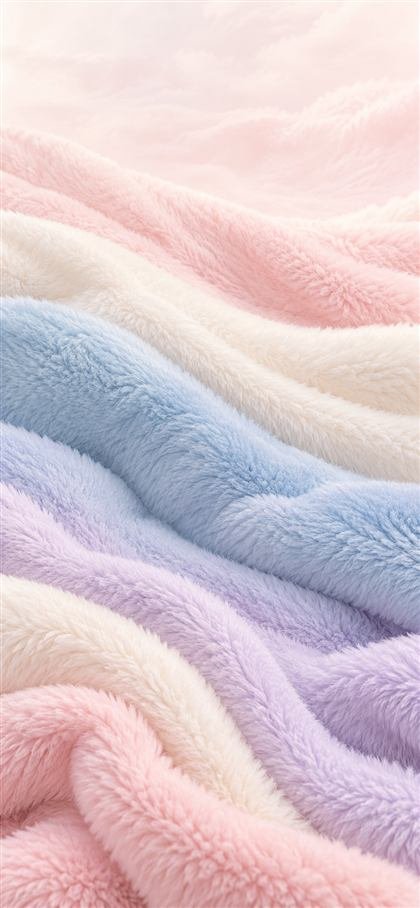

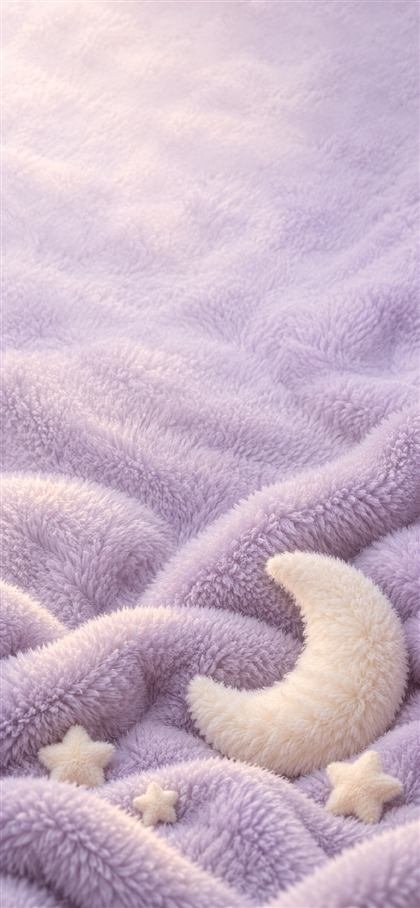

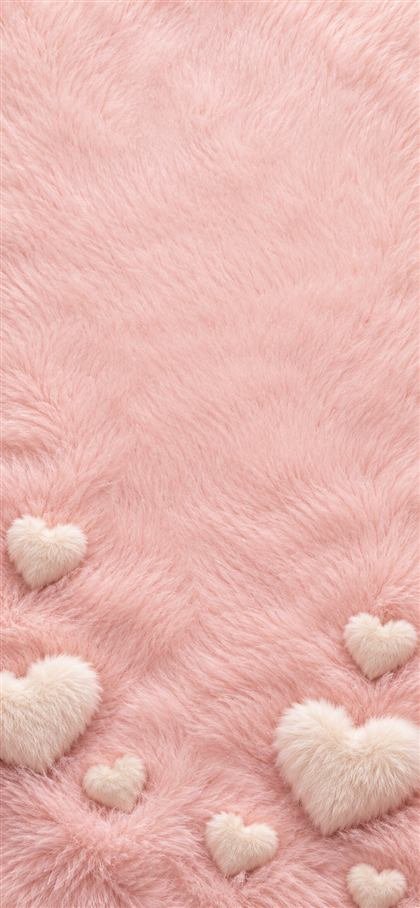
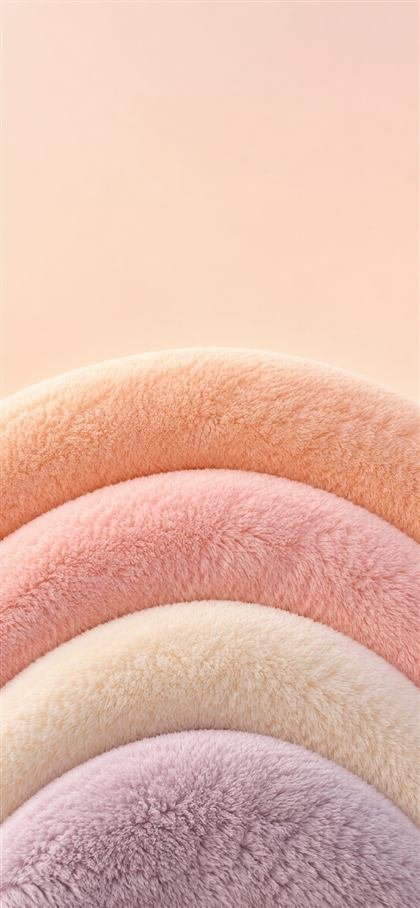


Easy styling idea: keep your most-used icons on the palest part of the background and arrange brighter icons in one or two rows. You do not have to replace every app at once—a single coordinated page can still look finished.
Step-by-step setup
How to add fluffy app icons with Apple Shortcuts
Custom icons work as Home Screen shortcuts that open your installed apps. The setup is manual, but the same steps repeat for every app, and you can stop whenever your screen feels complete. Menu wording may vary slightly between iOS versions.
-
Download and unzip the free collection.Tap the download button, open the ZIP in the Files app and let iPhone create the folder. You will see separate Icons and Wallpapers folders.
-
Open Apple Shortcuts.Tap the plus button to make a new shortcut, choose Add Action, search for Open App and select it.
-
Choose the app you want to style.Tap the blue App field in the action and select the real installed app, such as Instagram or Messages.
-
Add the shortcut to your Home Screen.Open the shortcut details or share menu, choose Add to Home Screen, then tap the small icon preview beside the shortcut name.
-
Select the matching fluffy image.Choose Choose Photo or Choose File, open the Icons folder, select the correct JPG and enter the app name you want displayed.
-
Tap Add and test the shortcut.Open it once from your Home Screen. When it works, remove the original icon from the Home Screen without deleting the app; it remains in the App Library.
-
Repeat only for the apps you want.Start with your first Home Screen page. This keeps the project manageable and lets you adjust colors before styling the rest.
Finish the look
How to set one of the fluffy wallpapers
-
Open the Wallpapers folder.Choose one of the eight PNG files and save it to Photos if needed.
-
Open iPhone Settings.Go to Wallpaper, tap Add New Wallpaper and select the fluffy image from Photos.
-
Adjust the crop gently.Pinch to position the design, keeping a calmer area behind your busiest rows of icons. Turn off any depth effect that crops too much of the artwork.
-
Set the Home Screen version.Choose it for the Home Screen, then preview your icon labels and move any hard-to-read shortcuts to a lighter area.
Quick answers
Free fluffy app icon FAQs
Is the complete collection really free?
Yes. The single ZIP includes all 107 JPG icon images and all eight full-resolution PNG wallpapers at no charge.
Do the icons install automatically?
No. They are image files, not an iPhone theme or app. Add each one manually with Apple Shortcuts by following the guide above.
Are there 107 different apps?
Not exactly. There are 107 individual icon image files, and a few apps have alternate versions. The number of unique apps is therefore lower than the file count.
Will custom icons remove my apps or data?
No. The shortcut opens your installed app. Your account and data remain unchanged, and the original app stays available in the App Library.
Why is there no PDF guide?
The complete instructions are kept in this article so you can always view the latest steps on phone or desktop. The download stays lighter and contains only the icon and wallpaper image files.
Can I share or resell the files?
No. The files are for personal Home Screen customization. Please share this article link instead of reposting, reselling or redistributing the ZIP or its images.